Guide · Undo
How to undo Win11Debloat
Almost everything Win11Debloat changes can be reversed, and release 2026.08.24 has more ways to do it than most guides mention. Which one to use depends on what you want back: one setting, everything from a run, or an app you removed. This page covers each way, what it does and does not restore, and what we saw when we tried them.
On this page 8 sections
Short answer
How do I undo Win11Debloat?
- One or a few tweaks: open Win11Debloat again, go to System Tweaks with Detect applied tweaks on, untick them and apply.
- Everything from a run: ☰ menu → Restore backup → Restore Registry Backup, and pick the backup it saved.
- Without opening it: double-click the matching file in
Regfiles\Undo. - Apps: reinstall them from the Microsoft Store. None of the methods above bring apps back.
Which method to use
| You want to… | Use | Restores |
|---|---|---|
| Turn one or two settings back on | Untick them in the wizard | Windows' default for those settings |
| Put back exactly what you had before a run | Restore the registry backup | Your own previous values, including settings you had changed yourself |
| Undo without running Win11Debloat | Import an undo file | Windows' default for that tweak |
| Roll back the whole PC | System Restore | System settings and files from before the run |
| Get an app back | Microsoft Store or winget | The app, as a fresh install |
| Get your Start menu pins back | Restore Start Menu Backup | The pinned apps layout |
1. Untick the tweak in the wizard
This is the easiest way, and it does the most. Release 2026.08.24 checks which tweaks are already in effect on your PC and shows them as ticked. Unticking one tells it to undo that tweak.
Start Win11Debloat again
Use the same one-liner or
Run.batas before, and choose Custom Setup. Skip past App Removal without ticking anything.Keep “Detect applied tweaks” on
It is on by default, at the top of the System Tweaks page. Tweaks that are in effect now are ticked, including ones you applied months ago.
Untick what you want back
For a drop-down setting, such as taskbar alignment or the search box style, pick the option marked (Default) instead.
Review and apply
On the review screen, undone tweaks are listed by their undo name, for example Enable Microsoft Copilot. Click Apply Changes.
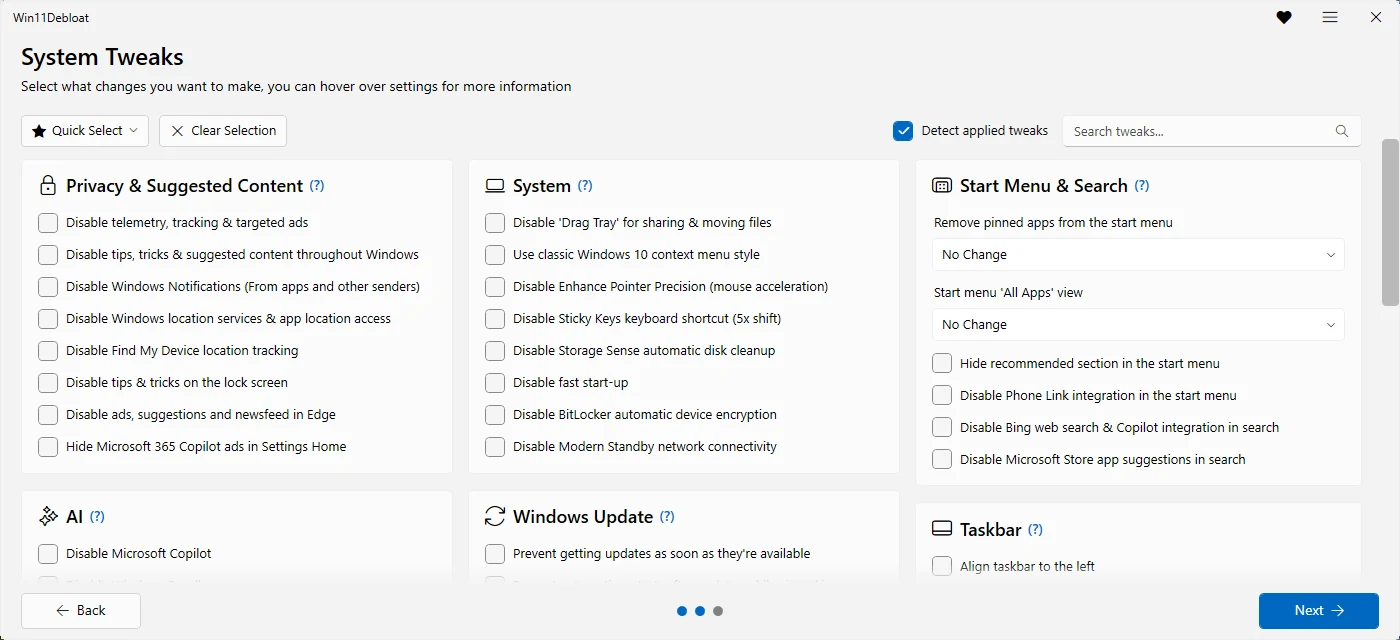
Under the hood it imports the tweak's undo file. For two tweaks it does more than that file alone would. Undoing -DisableTelemetry also turns the 8 telemetry scheduled tasks back on, and undoing -DisableStoreSearchSuggestions gives the Store its search database back. It does not reinstall apps that a tweak removed, such as Widgets or the Copilot app.
2. Restore the registry backup
Before applying tweaks, Win11Debloat saves the current state of every registry key it is about to change. Restoring that backup puts your PC back exactly as it was before that run. That includes settings you had changed yourself, which the undo files cannot know about.
Open the ☰ menu
In Win11Debloat, click ☰ in the top right and choose Restore backup.
Choose Restore Registry Backup
The other option, Restore Start Menu Backup, brings back your pinned Start apps if you cleared or replaced them.
Select the backup file
Backups are named
Win11Debloat-RegistryBackup-<date>_<time>.jsonand live in theBackupsfolder next to the script. With the one-liner, that is%TEMP%\Win11Debloat\Backups. Win11Debloat lists the changes it will revert before you confirm.
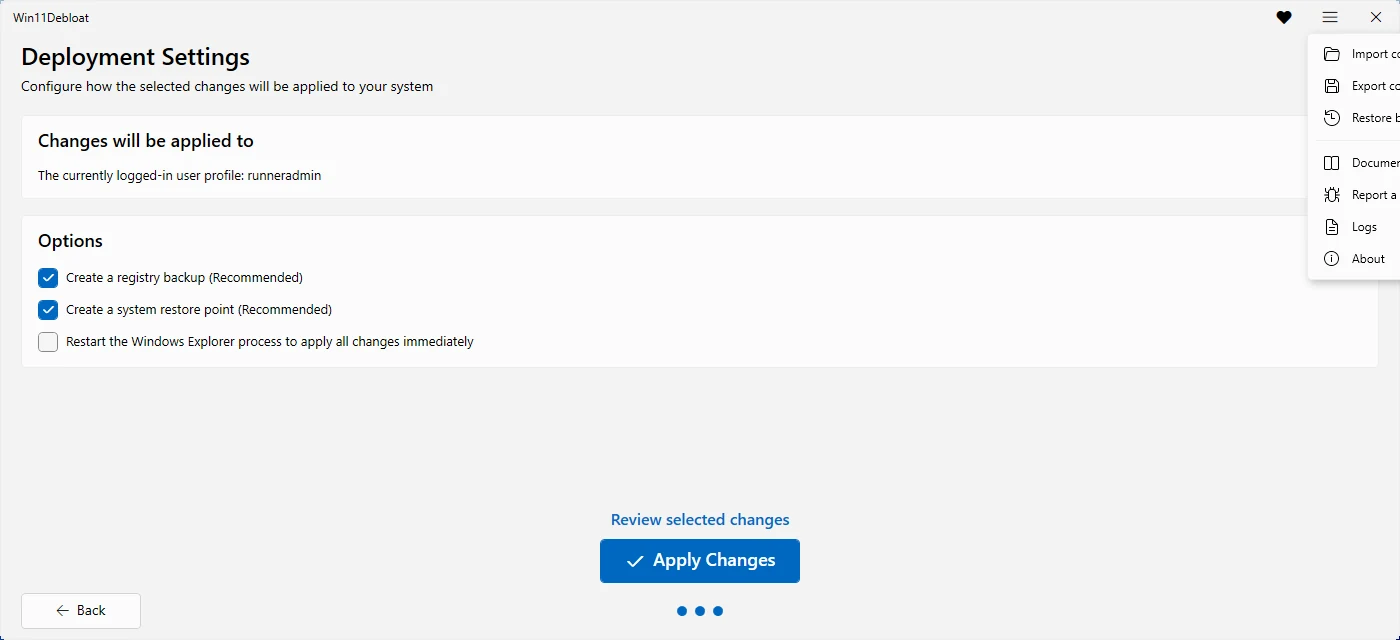
The dialog itself warns to use only backup files made by Win11Debloat, and that removed applications will need to be reinstalled manually.
3. Import an undo file
76 tweaks come with an undo file in the release's Regfiles\Undo folder, for example Enable_Copilot.reg for -DisableCopilot. Each sets the values back to Windows' default. Every tweak page on this site shows the undo file's exact contents.
Get the release files
If you used the one-liner, the script files were deleted afterwards. Download Source code (zip) from the latest release and extract it.
Double-click the undo file
Open
Regfiles\Undo, double-click the file and confirm. Files that change machine-wide settings need an administrator account.Restart Explorer or sign out
Taskbar, Start and File Explorer changes show after Explorer restarts. Others need a sign-out or a restart.
To do it from PowerShell instead, for example for several tweaks at once:
reg import ".\Regfiles\Undo\Enable_Copilot.reg"
reg import ".\Regfiles\Undo\Enable_AI_Recall.reg"
An undo file only covers the registry. If you undo -DisableTelemetry this way, turn the telemetry tasks back on yourself:
$tasks = 'Application Experience\Microsoft Compatibility Appraiser', 'Application Experience\Microsoft Compatibility Appraiser Exp',
  'Application Experience\ProgramDataUpdater', 'Application Experience\StartupAppTask',
  'Customer Experience Improvement Program\Consolidator', 'Customer Experience Improvement Program\UsbCeip',
  'DiskDiagnostic\Microsoft-Windows-DiskDiagnosticDataCollector', 'Autochk\Proxy'
foreach ($t in $tasks) {
  $path = '\Microsoft\Windows\' + (Split-Path $t) + '\'
  Enable-ScheduledTask -TaskPath $path -TaskName (Split-Path $t -Leaf) -ErrorAction SilentlyContinue
}
Some tweaks have no undo file. The "choose one" settings are undone by picking their (Default) option in the wizard. A few tweaks are PowerShell code rather than registry changes. -DisableStoreSearchSuggestions changes the Store's database: undo it in the wizard. -ClearStart unpins apps: use Restore Start Menu Backup. -DisableWidgets uninstalls the Widgets packages, and Win11Debloat has no undo for it: reinstall Windows Web Experience Pack and Widgets Experience from the Microsoft Store.
How well the undo files work: we tested 74 of them
We applied each tweak on its own on Windows 11 25H2 and then imported its undo file. 50 put every value back exactly as it was. 21 reverted the change but wrote Windows' standard value explicitly where none existed before, which is close but not identical to the original state. 3 left something behind: -HideHome and -HideGallery keep the extra Folder Options entry they add, and -DisableGameBarIntegration keeps its placeholder link handler. Each tweak's result is on its card on the tweak pages. Method and raw data.
4. System Restore
When the restore point option is on, which it is in Default mode, Win11Debloat creates a restore point called Restore point created by Win11Debloat before changing anything. We saw it created in every Windows 11 test run.
Open System Restore
Press Win + R, type
rstruiand press Enter.Pick the Win11Debloat restore point
Choose Choose a different restore point if needed, select Restore point created by Win11Debloat, and click Scan for affected programs to see what will change.
Finish and restart
Windows restarts to roll back. Anything you installed after that point is removed again.
Use this as a last resort. It also undoes everything else you did since, and it is not designed to bring back Microsoft Store apps.
Getting removed apps back
Win11Debloat removes apps with Windows' own commands, the same way you would uninstall them. To get one back, install it again. The app list has a checked Microsoft Store link and a winget command for 141 apps, and the app checker shows them for one app at a time.
winget install --id 9WZDNCRFJ3PR --source msstore   # Windows Clock
winget install --id 9MSSGKG348SP --source msstore   # Windows Web Experience Pack (Widgets)
winget install --id 9PC1H9VN18CM --source msstore # Widgets Experience (Start Experiences App)- Apps tied to your account, such as To Do and Sticky Notes, get their data back when you sign in again.
- Edge and OneDrive can be reinstalled with
winget install Microsoft.Edgeandwinget install Microsoft.OneDrive. - The Microsoft Store is the hard one. The simplest fix is an in-place repair: Settings → System → Recovery → Fix problems using Windows Update reinstalls Windows and keeps your files and apps.
Getting rid of "managed by your organization"
27 tweaks set Group Policy values, which is why Settings says Some settings are managed by your organization after a run. Undoing those tweaks with any method above deletes the policy values, and the message goes away once Settings is reopened. If it stays, sign out and back in. Which tweaks cause it, and how to check.
Questions
Can Win11Debloat be undone?
Yes. Tweaks can be undone in the wizard, from its registry backup, or with the undo files, and removed apps can be reinstalled from the Microsoft Store. The main exception is the Store itself, which is hard to reinstall once removed.
Is there a command-line switch to undo?
No. Release 2026.08.24 only undoes tweaks through the wizard. On the command line, import the undo files with reg import, as shown above.
Does deleting Win11Debloat undo its changes?
No. Win11Debloat is a script, not an installed program. Its changes are ordinary Windows settings and stay after the script is gone.
I used the one-liner. Where is my backup?
In %TEMP%\Win11Debloat\Backups. Paste that into the File Explorer address bar. If the folder is gone, the temp folder was cleaned up, so use the wizard or the undo files instead.
Will a Windows update undo Win11Debloat?
Not usually. Monthly updates keep your settings. Major feature updates, which install a new Windows version, can reset some settings and bring some apps back. Running Win11Debloat again with -RunSavedSettings reapplies your last choices.
Keep going
Something wrong or out of date? Email hello@win11debloat.dev and we will fix it.