Guide
How to use Win11Debloat, step by step
The whole process takes a few minutes. Start the script, choose a user, then pick Default Mode or build your own selection in Custom Setup. Review the list and apply. The screenshots below come from Win11Debloat 2026.08.24 running on a real Windows machine.
On this page 11 sections
- Before you start: a 60-second checklist
- Step 1: start Win11Debloat
- Step 2: choose the user, then Default Mode or Custom Setup
- Step 3 (Custom Setup): choose apps to remove
- Step 4 (Custom Setup): choose tweaks
- Step 5: Deployment Settings, review, apply
- Step 6: restart and check
- The Options menu
- Prefer a terminal? The CLI menu
- Common mistakes
- Questions
Short answer
How do I use Win11Debloat?
- Open PowerShell, paste
& ([scriptblock]::Create((irm "https://debloat.raphi.re/")))and press Enter. - Click Yes on the UAC prompt.
- Leave the user on Current User and click Default Mode, or Custom Setup to choose apps and tweaks yourself.
- On Deployment Settings, keep registry backup and restore point ticked. Click Review selected changes, then Apply Changes.
- When it says Changes Applied, restart your PC.
Before you start: a 60-second checklist
- Use an administrator account. The script asks for elevation, so a standard account would need an admin password.
- System Protection does not need to be on already. If it is off, Win11Debloat turns it on for drive C: and then makes the restore point. If you already made a restore point in the last 24 hours, it does not make another.
- Save your work and close apps, especially the ones you plan to remove. Win11Debloat may restart Explorer, so your taskbar and open folders will flash.
- Know what you are removing. Default mode never touches Photos, Calculator, Notepad, the Microsoft Store, Edge or OneDrive. In Custom Setup, read the rating dot next to every app.
- Allow a few minutes. Default mode took 108 seconds from start to finish on our Windows 11 test machine, with 84 apps checked and 17 actually installed and removed.
Step 1: start Win11Debloat
Pick one of the three official methods. The download page covers each in depth.
Right-click Start and choose Terminal or Windows PowerShell. Paste this line and press Enter:
& ([scriptblock]::Create((irm "https://debloat.raphi.re/")))The launcher downloads the latest release to your temp folder and asks for administrator rights. Its own window then minimizes and waits until you close Win11Debloat.
Download Source code (zip) from the latest release, extract it, and double-click Run.bat. Accept the UAC prompt.
If the black window flashes and disappears, use the PowerShell tab instead. That is also the project's own advice for this case. Run.bat writes what it tried to Logs\Win11Debloat-Run.log inside the extracted folder.
Extract the ZIP to a short path such as C:\Win11Debloat, open PowerShell as administrator, and run:
Set-ExecutionPolicy Bypass -Scope Process -Force
cd C:\Win11Debloat
.\Win11Debloat.ps1
-Scope Process applies only to this window. Add switches after .\Win11Debloat.ps1, for example -CLI for the text menu.
Step 2: choose the user, then Default Mode or Custom Setup
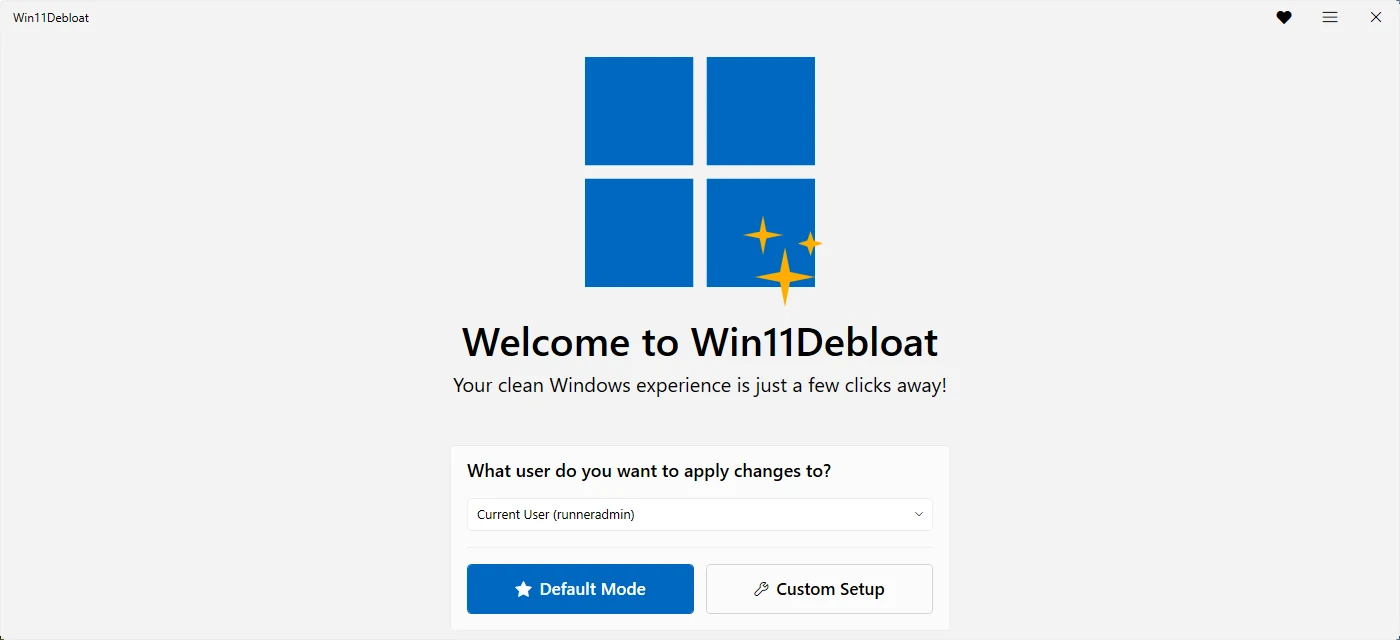
The home screen asks one question: What user do you want to apply changes to?
| Option | What it changes | When to use it |
|---|---|---|
| Current User | Your own settings (HKCU), plus machine-wide settings and app removal | Almost always |
| Other User | Another local account's settings. Type its user name. | Setting up a PC for someone else. How it works |
| Windows Default User (Sysprep) | The default profile that new accounts are copied from | Preparing a PC or image before any user signs in |
Then choose a path:
- Default Mode selects the project's recommended apps and tweaks and jumps straight to the last step. See exactly what it selects.
- Custom Setup walks you through three pages: apps, tweaks, then deployment settings.
Step 3 (Custom Setup): choose apps to remove
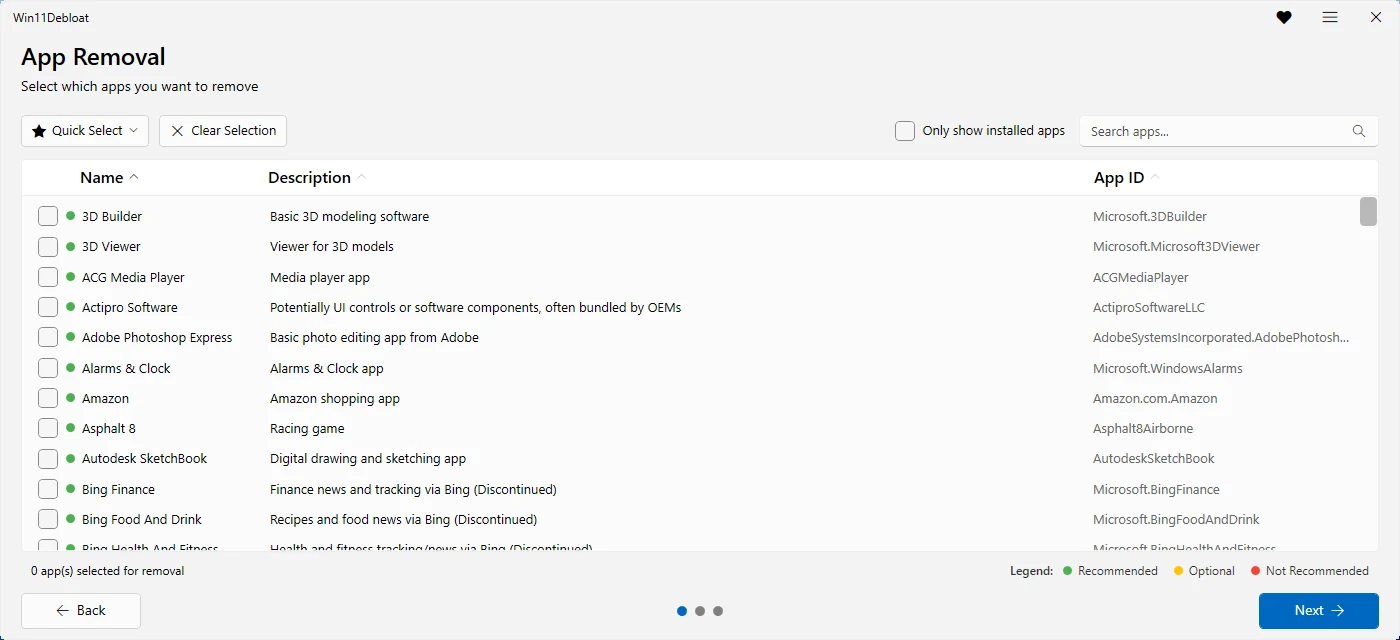
The App Removal page lists all 141 apps the script knows how to remove. Nothing is ticked until you choose. Useful controls:
- Quick Select offers ready-made selections: Default apps (the 84 that Default mode removes), Previously selected apps, and presets for Xbox gaming apps and OEM software from Dell, HP, Lenovo and LG.
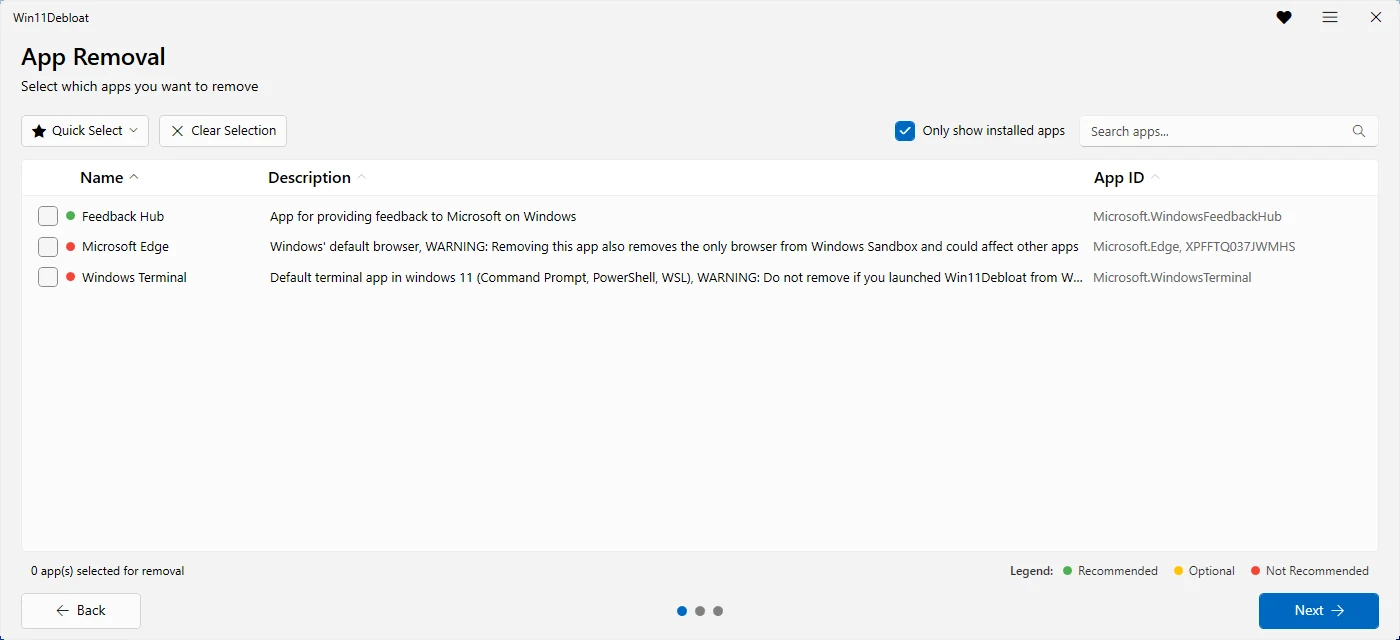
- Only show installed apps hides apps that are not on this PC. It is the fastest way to see what you could actually remove.
- The coloured dot is the project's own rating. Green means Recommended to remove, yellow is Optional, and red is Not Recommended.
- Search apps filters by name, description or app ID. Click a column header to sort.
Step 4 (Custom Setup): choose tweaks
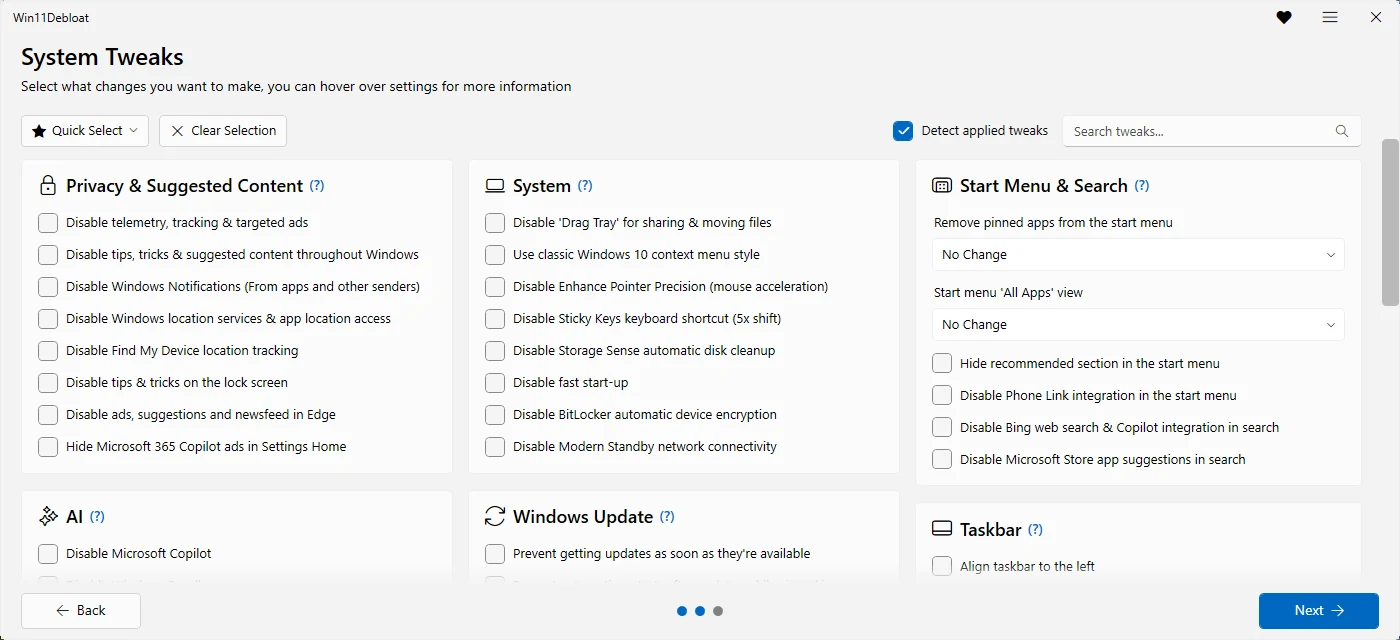
The System Tweaks page groups all 95 tweaks into 12 areas. Hover over a setting, or click the (?) next to a heading, for an explanation.
- Detect applied tweaks is on by default. It ticks settings that are already in effect on this PC. In our test, Disable fast start-up came pre-ticked because Fast Startup was already off on that machine.
- Drop-downs are settings with several choices, such as taskbar search style or Remove pinned apps from the start menu. Leaving one on its first value changes nothing.
- Quick Select and Clear Selection work as on the app page, and Search tweaks filters the whole page.
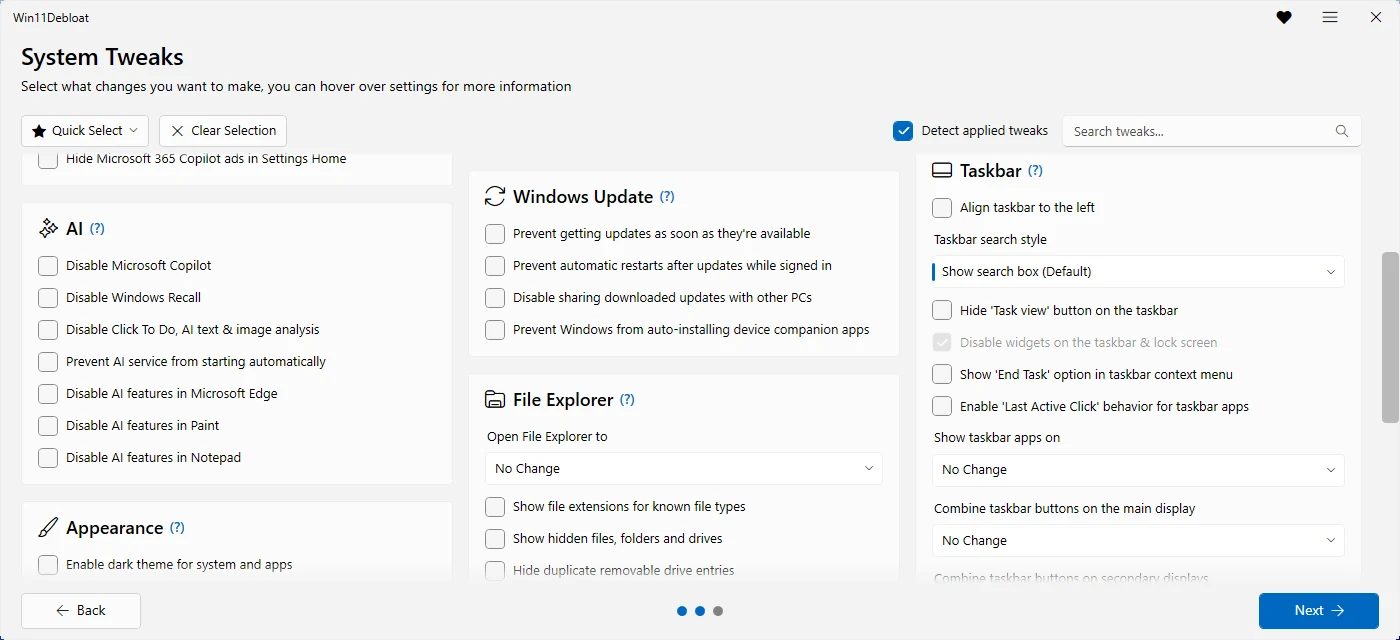
Our tweak reference lists every tweak with the exact registry values it writes and whether it locks a setting with a policy.
Step 5: Deployment Settings, review, apply
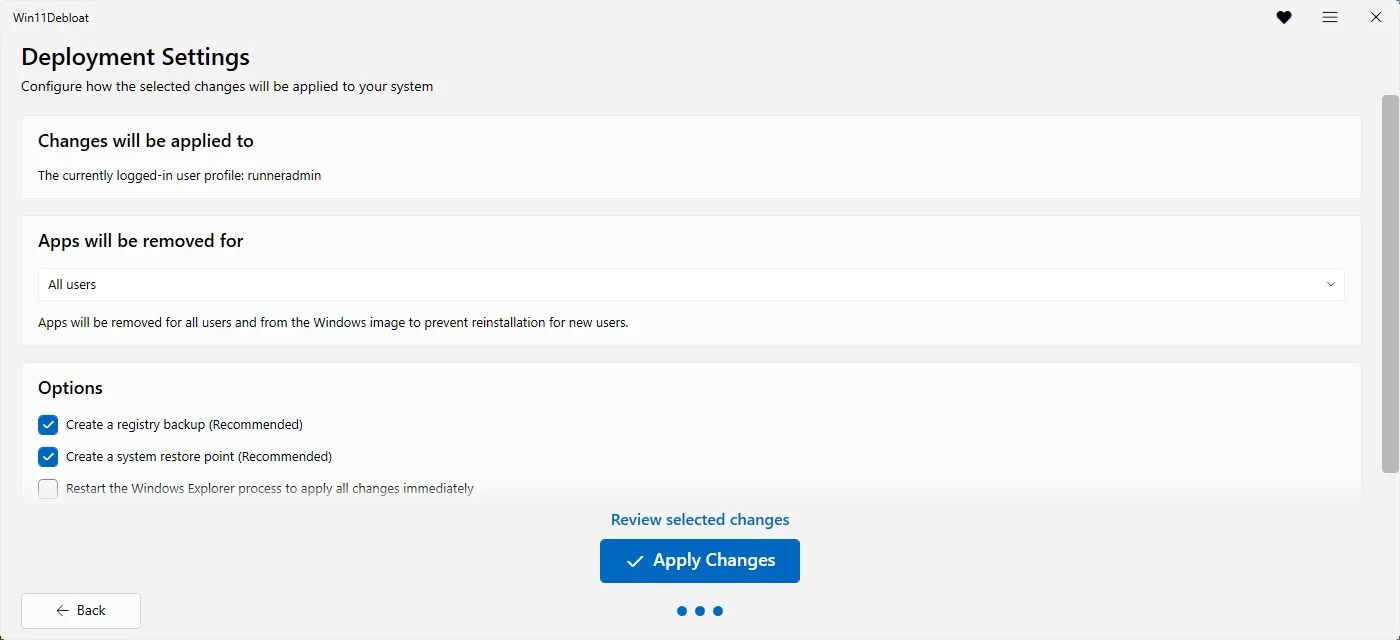
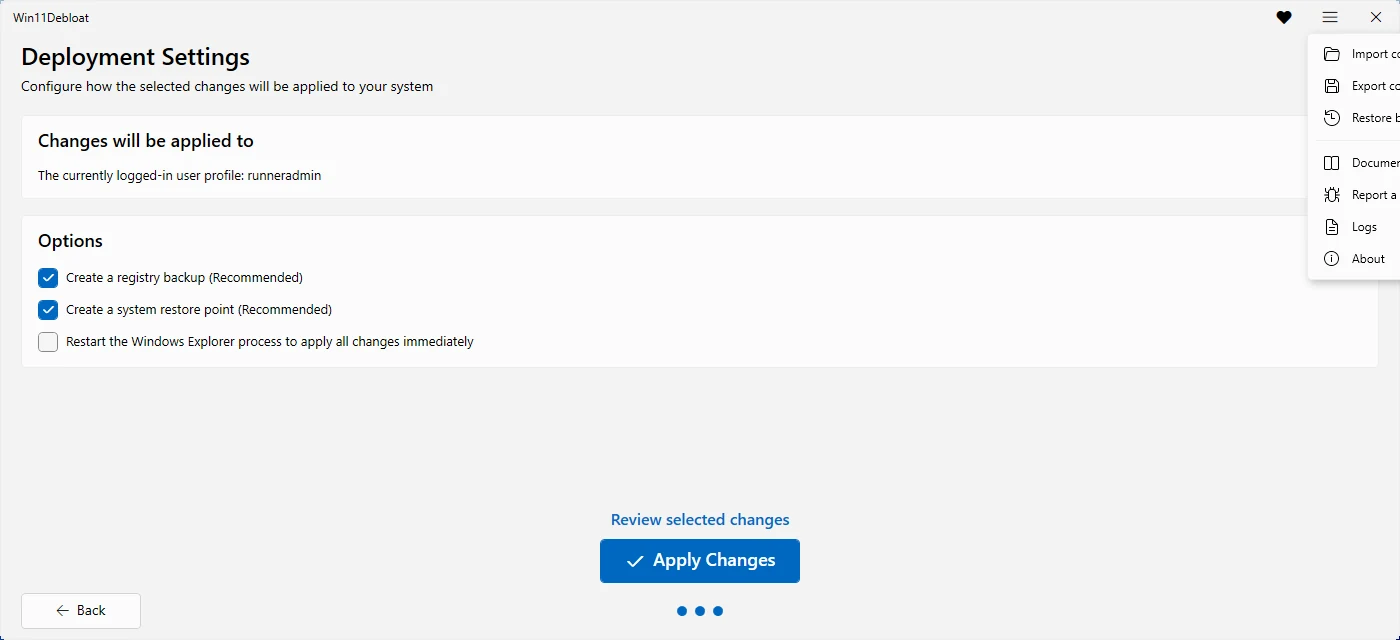
This page is where Default Mode lands, and it is the last page of Custom Setup.
- Changes will be applied to
- The user you chose on the home screen.
- Apps will be removed for
- Shown only when apps are selected. All users also removes them from the Windows image, so new accounts do not get them; this is the default. You can also choose Current user only, or Target user only when you picked another user.
- Create a registry backup
- Ticked by default. It saves the current value of every registry setting about to change, so you can restore them later from Options → Restore backup. Keep it on.
- Create a system restore point
- Ticked by default. Turns on System Protection for drive C: if needed. Skipped if a restore point from the last 24 hours exists.
- Restart the Windows Explorer process
- Not ticked by default. Tick it to see taskbar and Start menu changes immediately instead of after the next sign-in.
Click Review selected changes for a plain list of everything about to happen. On our test machine, Default mode listed 84 apps and 13 tweaks. The 3 other default tweaks do not apply to that Windows build, so they were left out.
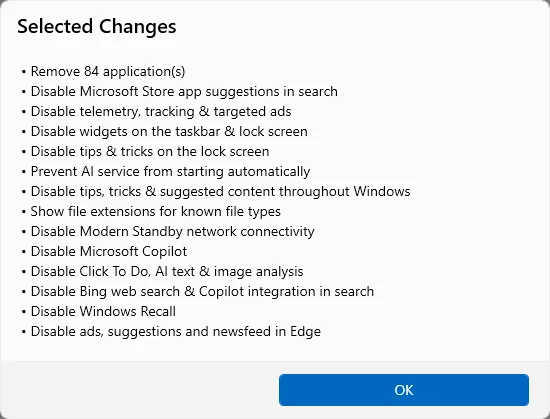
Close the list with OK and click Apply Changes. A progress window shows each step ("Step 3 of 16") and a Cancel button. When it finishes you see Changes Applied, a list of changes that need a reboot (if any), and a Close button.
Step 6: restart and check
- Restart your PC, even if no reboot list appeared. Policy changes and some Start menu settings only fully apply after a sign-out or restart.
- Check the things you use. Open Start, search for an app, sign in to the Microsoft Store and run a game launcher if you have one.
- Expect one new message. Default mode sets several Group Policy keys, so pages such as Settings → Privacy & security → Diagnostics & feedback now say Some settings are managed by your organization. This is expected. Why it happens.
- If something broke, check troubleshooting, or undo with Options → Restore backup. Undo guide.
The Options menu
The ☰ button at the top right of every page opens:
- Import config / Export config saves your selection to a file and loads it on another PC. Config files.
- Restore backup restores a registry backup, or a backed-up Start menu layout.
- Documentation, Report a bug and About open the project's GitHub pages.
- Logs opens the log folder. Each run is recorded in
Logs\Win11Debloat.log, which is the file to attach to a bug report.
Prefer a terminal? The CLI menu
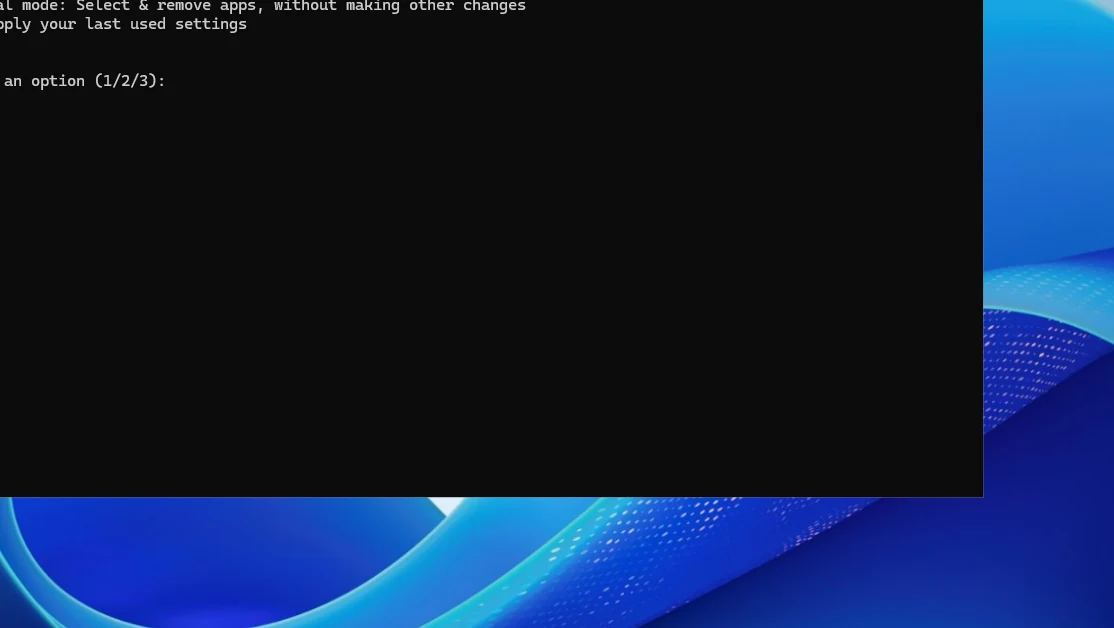
-CLI switch.Add -CLI to any launch method to skip the window. Win11Debloat shows a text menu instead:
- Default mode: quickly apply the recommended changes.
- App removal mode: select and remove apps, without making other changes.
- Quickly apply your last used settings: repeat what you did last time.
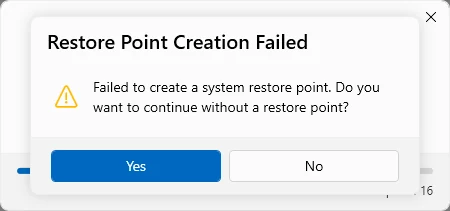
For no questions at all, combine a mode with -Silent, for example -RunDefaults -Silent. In silent mode, a failed restore point does not stop the run. Every switch is listed in the command-line reference, and the command builder writes the command for you.
Common mistakes
| Symptom | Cause | Fix |
|---|---|---|
| "running scripts is disabled on this system" | The execution policy blocks .ps1 files | Use the one-liner, or run Set-ExecutionPolicy Bypass -Scope Process -Force first |
| Run.bat window closes at once | The batch file was blocked, or PowerShell could not start elevated | Start it from PowerShell (method 3) |
| Nothing happens after the one-liner | The UAC prompt is hidden behind other windows, or was declined | Look for a flashing shield icon on the taskbar, then click Yes |
| "Unable to fetch required files from GitHub" | No connection to GitHub, a proxy, or a firewall blocking it | Check the connection, or use the ZIP method |
| The run stopped after the restore point step | You answered No, or closed the restore point dialog | Run it again and answer Yes, or check System Protection in Create a restore point |
| Changes do not show | Explorer was not restarted | Sign out and in, or restart the PC |
Questions
How long does Win11Debloat take?
Usually one to three minutes. On our Windows 11 test machine, Default mode finished in 108 seconds, including starting PowerShell, checking all 84 default apps and removing the 17 that were installed. App removal is the slow part, so a PC with more preinstalled apps takes longer.
Do I need to run Win11Debloat as administrator?
Yes. It changes machine-wide settings and removes apps for all users. The one-liner and Run.bat ask for elevation themselves; the manual method needs an administrator PowerShell window.
Can I run it again later?
Yes, and it is safe to. Already-applied tweaks are simply set again, and Detect applied tweaks shows what is already in effect. Major Windows feature updates can bring back some apps or settings, and running Win11Debloat again after one is a common habit.
What does “Restart the Windows Explorer process” do?
It restarts the program that draws the taskbar, Start menu and desktop, so changes there show up immediately. Your screen flickers for a moment. Open apps are not closed.
Do I have to restart my PC afterwards?
It is strongly recommended. Some changes, such as policies, the AI service setting and Modern Standby networking, only take full effect after a restart. When that applies, the completion window lists the changes that need a reboot.
Keep going
Something wrong or out of date? Email hello@win11debloat.dev and we will fix it.