Original research · Test results
We ran Win11Debloat on real Windows
Most write-ups about Win11Debloat repeat its README. We ran release 2026.08.24 ourselves, five times on two Windows machines, and then applied every one of its tweaks on its own, recording the system before and after. This page has what we found: what Default mode does step by step, what it really changed, what went wrong, and every raw file, so you can check the numbers yourself.
On this page 14 sections
- The test machines
- Every run, side by side
- What Default mode does, step by step
- What it removed
- Every registry value it changed
- Everything else we measured
- Every tweak, one at a time
- What went wrong, and what it looked like
- What it looked like
- The files we ran
- What these tests do not cover
- Community results
- Raw data
- Questions
Short answer
What happens when you run Win11Debloat's Default mode?
- On a clean Windows 11 Enterprise 25H2 PC it took 108 to 151 seconds, removed 17 app packages and changed 61 registry values.
- Two runs, one from the command line and one through the GUI, produced exactly the same changes.
- It created a restore point and a registry backup first. The only failure was the Copilot Store app, which needs WinGet, and it was not installed anyway.
- A
-WhatIfdry run listed every step in 3 seconds and changed nothing.
The test machines
We used GitHub's hosted Windows runners: fresh virtual machines that nobody has used before, created for each run and deleted after it. A script drove the official release exactly as a person would. It downloaded the release the way the one-liner does, clicked through the GUI with Windows' UI Automation, and took screenshots along the way.
| Windows 11 | Windows Server | |
|---|---|---|
| Edition | Windows 11 Enterprise | Windows Server 2025 Datacenter |
| Version and build | 25H2, build 26200.9711 | 24H2, build 26100.33650 |
| Processor | Arm64, 2 cores | x64, 2 cores |
| Memory | 8 GB | 8 GB |
| PowerShell | Windows PowerShell 5.1 | Windows PowerShell 5.1 |
| Apps installed before | 107 packages, 34 of them in Win11Debloat's list | Very few: Server ships without the consumer apps |
| Why it is useful | A real Windows 11 25H2 install. All results on this site about Windows 11 come from this machine. | Same Windows 11 24H2 code base. Good for the GUI and the download, but it has no System Restore and almost no apps to remove. |
Every run, side by side
Windows 11 Enterprise 25H2Run 1
Command line, -RunDefaults -Silent · build 26200.9711 · Arm64
“Script completed!”, 2 app removals failed
Windows 11 Enterprise 25H2Run 3
GUI, Default Mode button · build 26200.9711 · Arm64
Changes Applied with Errors
Windows Server 2025Run 1
GUI, Default Mode button · build 26100.33650 · x64
Our script dismissed the restore-point dialog, which cancels the run. Nothing was changed.
Windows Server 2025Run 2
GUI, Default Mode button · build 26100.33650 · x64
Changes Applied with Errors
Windows Server 2025Run 3
GUI, Default Mode button · build 26100.33650 · x64
Changes Applied with Errors
Runs 1 and 3 on Windows 11 are the ones to compare. One used the command line, the other the GUI's Default Mode button. Both removed the same 17 packages and changed the same 61 registry values, down to the last one. The GUI time is longer partly because our script timed it from the Apply Changes click to the completion dialog, taking screenshots in between.
The Windows Server runs changed 61 values too, but not quite the same ones. Server is on build 26100, so -DisableDragTray (build 26200 and later) was skipped there. Instead, one advertising ID value that the Windows 11 image already had set needed changing on Server.
What Default mode does, step by step
Win11Debloat supports PowerShell's -WhatIf switch, although the README does not mention it. With it, the script prints every change it would make and makes none. We ran Win11Debloat.ps1 -RunDefaults -Silent -WhatIf on the Windows 11 machine, then checked all 200 registry values the tweaks can touch: none had changed. This is the order of operations it printed:
- 1Before any change
- Save settings to LastUsedSettings.json
- Create registry backup
- Create system restore point
- 2Removing selected apps for all users84 packagesClipchamp3D BuilderCortanaBing FinanceBing Food And DrinkBing Health And FitnessBing NewsBing SportsBing TranslatorBing TravelBing WeatherMicrosoft CopilotCopilot+ AI HubMicrosoft PC Manager
and 70 more
Get StartedMessaging3D ViewerMicrosoft JournalOffice HubPower BISolitaire CollectionSticky NotesMixed Reality PortalNetwork Speed TestMicrosoft NewsOneNoteSwayOne ConnectPrint 3DPower AutomateSkype (UWP)Microsoft To DoDev HomeAlarms & ClockFeedback HubWindows MapsSound RecorderXbox Console CompanionMovies & TVFamily SafetyQuick AssistMicrosoft Teams (Old)Microsoft Teams (New)ACG Media PlayerActipro SoftwareAdobe Photoshop ExpressAmazonPrime VideoAsphalt 8Autodesk SketchBookCaesars SlotsCooking FeverCyberLink Media SuiteDisney Magic KingdomsDisney+Drawboard PDFDuolingoEclipse ManagerFacebookFarmVille 2FlipboardHidden CityHuluiHeartRadioInstagramBubble Witch 3Candy Crush SagaCandy Crush SodaLinkedInMarch of EmpiresNetflixNYT CrosswordOne CalendarPandoraPhototastic CollagePicsArtPolarr Photo EditorRoyal RevoltLive WallpaperSling TVSpotifyTikTokTuneIn RadioWinZip - 3Disabling telemetry and diagnostic data collection15 registry values
-DisableTelemetryDisable_Telemetry.reg15 values - 4Disabling telemetry scheduled tasks8 scheduled tasks
\Microsoft\Windows\Application Experience\Microsoft Compatibility Appraiser\Microsoft\Windows\Application Experience\Microsoft Compatibility Appraiser Exp\Microsoft\Windows\Application Experience\ProgramDataUpdater\Microsoft\Windows\Application Experience\StartupAppTask\Microsoft\Windows\Customer Experience Improvement Program\Consolidator\Microsoft\Windows\Customer Experience Improvement Program\UsbCeip\Microsoft\Windows\DiskDiagnostic\Microsoft-Windows-DiskDiagnosticDataCollector\Microsoft\Windows\Autochk\Proxy
- 5Disabling tips, tricks, suggestions and ads throughout Windows18 registry values
-DisableSuggestionsDisable_Windows_Suggestions.reg18 values - 6Disabling ads, suggestions and the MSN news feed in Microsoft Edge13 registry values
-DisableEdgeAdsDisable_Edge_Ads_And_Suggestions.reg13 values - 7Disabling tips & tricks on the lock screen2 registry values
-DisableLockscreenTipsDisable_Lockscreen_Tips.reg2 values - 8Disabling Bing web search & Copilot integration in Windows search3 registry values · 1 package
-DisableBingDisable_Bing_Cortana_In_Search.reg3 valuesBing Search - 9Disabling Microsoft Store search suggestions for user runneradmin
- Disable Microsoft Store search suggestions for user runneradmin by restricting access to C:\Users\runneradmin\AppData\Local\Packages\Microsoft.WindowsStore_8wekyb3d8bbwe\LocalState\store.db
- 10Disabling Microsoft Copilot3 registry values · 2 packages
-DisableCopilotDisable_Copilot.reg3 valuesMicrosoft.CopilotMicrosoft Copilot - 11Disabling Windows Recall4 registry values
-DisableRecallDisable_AI_Recall.reg4 values - 12Disabling Click to Do2 registry values
-DisableClickToDoDisable_Click_to_Do.reg2 values - 13Preventing AI service from starting automatically1 registry value
-DisableAISvcAutoStartDisable_AI_Service_Auto_Start.reg1 value - 14Disabling widgets on the taskbar & lock screen3 packagesWidgets ExperienceWindows Web Experience PackWidgets Platform Runtime
- 15Enabling file extensions for known file types1 registry value
-ShowKnownFileExtShow_Extensions_For_Known_File_Types.reg1 value - 16Disabling Drag Tray1 registry value
-DisableDragTrayDisable_Share_Drag_Tray.reg1 value - 17Disabling network connectivity during Modern Standby2 registry values
-DisableModernStandbyNetworkingDisable_Modern_Standby_Networking.reg2 values - 18Finishing up
- Restart the Windows Explorer process
The dry run lists all 84 apps in the default selection, whether or not they are installed. The real run only removes what is there: 13 of them on our machine. Most of the tweaks are a single .reg file. The values listed add up to 65. On our machine 4 of those 65 already had the right value, which is why the real run changed 61.
.\Win11Debloat.ps1 -RunDefaults -Silent -WhatIf
Full transcript: Windows 11, Windows Server.
What it removed
| Removed package | What it is | Why it was removed |
|---|---|---|
ClipchampClipchamp.Clipchamp | Video editor from Microsoft | In the default app list |
Bing NewsMicrosoft.BingNews | News aggregator via Bing (Replaced by Microsoft News/Start) | In the default app list |
Bing SearchMicrosoft.BingSearch | Web Search from Microsoft Bing (Integrates into Windows Search) | Uninstalled by the -DisableBing tweak |
Bing WeatherMicrosoft.BingWeather | Weather forecast via Bing | In the default app list |
Office HubMicrosoft.MicrosoftOfficeHub | Hub to access Microsoft Office apps and documents (Precursor to Microsoft 365 app) | In the default app list |
Solitaire CollectionMicrosoft.MicrosoftSolitaireCollection | Collection of solitaire card games | In the default app list |
Sticky NotesMicrosoft.MicrosoftStickyNotes | Digital sticky notes app (Discontinued & replaced by OneNote) | In the default app list |
Widgets ExperienceMicrosoft.StartExperiencesApp | This app powers Windows Widgets My Feed | Uninstalled by the -DisableWidgets tweak |
Microsoft To DoMicrosoft.Todos | To-do list and task management app | In the default app list |
Widgets Platform RuntimeMicrosoft.WidgetsPlatformRuntime | Runtime required for Windows Widgets to function | Uninstalled by the -DisableWidgets tweak |
Dev HomeMicrosoft.Windows.DevHome | Developer dashboard and tool configuration utility (Discontinued) | In the default app list |
Alarms & ClockMicrosoft.WindowsAlarms | Alarms & Clock app | In the default app list |
Feedback HubMicrosoft.WindowsFeedbackHub | App for providing feedback to Microsoft on Windows | In the default app list |
Sound RecorderMicrosoft.WindowsSoundRecorder | Basic audio recording app | In the default app list |
Quick AssistMicrosoftCorporationII.QuickAssist | Remote assistance tool | In the default app list |
Windows Web Experience PackMicrosoftWindows.Client.WebExperience | Helps deliver and update certain features, like Widgets, through the Microsoft Store | Uninstalled by the -DisableWidgets tweak |
Microsoft Teams (New)MSTeams | New Microsoft Teams app (Work/School or Personal) | In the default app list |
Four of the 17 packages are not in the app list at all. The Widgets and Bing search tweaks uninstall them as part of what they do. Apps were removed for all users, and 15 of them were also removed from the Windows image (provisioned packages), so new user accounts do not get them either. The other two were not provisioned to begin with.
Every registry value it changed
Grouped by the tweak that wrote it. "not set" means the value did not exist, which is how Windows behaves by default.
Disable telemetry, tracking & targeted ads-DisableTelemetry12 values
| HKCUSoftware\Microsoft\Windows\CurrentVersion\Privacy | TailoredExperiencesWithDiagnosticDataEnabled | 2→0 |
| HKCUSoftware\Microsoft\Speech_OneCore\Settings\OnlineSpeechPrivacy | HasAccepted | no key→0 |
| HKCUSoftware\Microsoft\Input\TIPC | Enabled | not set→0 |
| HKCUSoftware\Microsoft\InputPersonalization | RestrictImplicitInkCollection | 0→1 |
| HKCUSoftware\Microsoft\InputPersonalization | RestrictImplicitTextCollection | 0→1 |
| HKCUSoftware\Microsoft\InputPersonalization\TrainedDataStore | HarvestContacts | 1→0 |
| HKCUSoftware\Microsoft\Personalization\Settings | AcceptedPrivacyPolicy | 1→0 |
| HKCUSoftware\Microsoft\Windows\CurrentVersion\Explorer\Advanced | Start_TrackProgs | not set→0 |
| HKLMSOFTWARE\Policies\Microsoft\Windows\System | PublishUserActivities | not set→0 |
| HKCUSOFTWARE\Microsoft\Siuf\Rules | NumberOfSIUFInPeriod | no key→0 |
| HKLMSOFTWARE\Policies\Microsoft\Edge | PersonalizationReportingEnabled | no key→0 |
| HKLMSOFTWARE\Policies\Microsoft\Edge | DiagnosticData | no key→0 |
Disable tips, tricks & suggested content throughout Windows-DisableSuggestions18 values
| HKCUSoftware\Microsoft\Windows\CurrentVersion\ContentDeliveryManager | SubscribedContent-310093Enabled | not set→0 |
| HKCUSoftware\Microsoft\Windows\CurrentVersion\ContentDeliveryManager | SubscribedContent-338388Enabled | not set→0 |
| HKCUSoftware\Microsoft\Windows\CurrentVersion\ContentDeliveryManager | SystemPaneSuggestionsEnabled | 1→0 |
| HKCUSoftware\Microsoft\Windows\CurrentVersion\Explorer\Advanced | Start_IrisRecommendations | not set→0 |
| HKCUSoftware\Microsoft\Windows\CurrentVersion\ContentDeliveryManager | SubscribedContent-338389Enabled | not set→0 |
| HKCUSoftware\Microsoft\Windows\CurrentVersion\ContentDeliveryManager | SoftLandingEnabled | 1→0 |
| HKCUSoftware\Microsoft\Windows\CurrentVersion\ContentDeliveryManager | SubscribedContent-338393Enabled | not set→0 |
| HKCUSoftware\Microsoft\Windows\CurrentVersion\ContentDeliveryManager | SubscribedContent-353694Enabled | not set→0 |
| HKCUSoftware\Microsoft\Windows\CurrentVersion\ContentDeliveryManager | SubscribedContent-353696Enabled | not set→0 |
| HKCUSoftware\Microsoft\Windows\CurrentVersion\ContentDeliveryManager | SubscribedContent-353698Enabled | not set→0 |
| HKCUSoftware\Microsoft\Windows\CurrentVersion\SystemSettings\AccountNotifications | EnableAccountNotifications | not set→0 |
| HKCUSOFTWARE\Microsoft\Windows\CurrentVersion\UserProfileEngagement | ScoobeSystemSettingEnabled | no key→0 |
| HKCUSoftware\Microsoft\Windows\CurrentVersion\Explorer\Advanced | ShowSyncProviderNotifications | not set→0 |
| HKCUSoftware\Microsoft\Windows\CurrentVersion\ContentDeliveryManager | SilentInstalledAppsEnabled | 1→0 |
| HKCUSoftware\Microsoft\Windows\CurrentVersion\Notifications\Settings\Windows.SystemToast.Suggested | Enabled | no key→0 |
| HKCUSoftware\Microsoft\Windows\CurrentVersion\Mobility | OptedIn | not set→0 |
| HKCUSoftware\Microsoft\Windows\CurrentVersion\Explorer\Advanced | Start_AccountNotifications | not set→0 |
| HKCUSOFTWARE\Microsoft\Windows\CurrentVersion\Notifications\Settings\Windows.SystemToast.BackupReminder | Enabled | no key→0 |
Disable tips & tricks on the lock screen-DisableLockscreenTips2 values
| HKCUSoftware\Microsoft\Windows\CurrentVersion\ContentDeliveryManager | SubscribedContent-338387Enabled | not set→0 |
| HKCUSoftware\Microsoft\Windows\CurrentVersion\ContentDeliveryManager | RotatingLockScreenOverlayEnabled | 1→0 |
Disable ads, suggestions and newsfeed in Edge-DisableEdgeAds13 values
| HKLMSOFTWARE\Policies\Microsoft\Edge | NewTabPageContentEnabled | no key→0 |
| HKLMSOFTWARE\Policies\Microsoft\Edge | NewTabPageHideDefaultTopSites | no key→1 |
| HKLMSOFTWARE\Policies\Microsoft\Edge | EdgeShoppingAssistantEnabled | no key→0 |
| HKLMSOFTWARE\Policies\Microsoft\Edge | TabServicesEnabled | no key→0 |
| HKLMSOFTWARE\Policies\Microsoft\Edge | AlternateErrorPagesEnabled | no key→0 |
| HKLMSOFTWARE\Policies\Microsoft\Edge | UserFeedbackAllowed | no key→0 |
| HKLMSOFTWARE\Policies\Microsoft\Edge | ShowRecommendationsEnabled | no key→0 |
| HKLMSOFTWARE\Policies\Microsoft\Edge | WalletDonationEnabled | no key→0 |
| HKLMSOFTWARE\Policies\Microsoft\Edge | HideFirstRunExperience | no key→0 |
| HKLMSOFTWARE\Policies\Microsoft\Edge | DefaultBrowserSettingEnabled | no key→0 |
| HKLMSOFTWARE\Policies\Microsoft\Edge | DefaultBrowserSettingsCampaignEnabled | no key→0 |
| HKLMSOFTWARE\Policies\Microsoft\Edge | SpotlightExperiencesAndRecommendationsEnabled | no key→0 |
| HKLMSOFTWARE\Policies\Microsoft\Edge | ShowAcrobatSubscriptionButton | no key→0 |
Disable Microsoft Copilot-DisableCopilot3 values
| HKCUSoftware\Microsoft\Windows\CurrentVersion\Explorer\Advanced | ShowCopilotButton | not set→0 |
| HKCUSoftware\Policies\Microsoft\Windows\WindowsCopilot | TurnOffWindowsCopilot | no key→1 |
| HKLMSOFTWARE\Policies\Microsoft\Windows\WindowsCopilot | TurnOffWindowsCopilot | no key→1 |
Disable Windows Recall-DisableRecall4 values
| HKCUSoftware\Policies\Microsoft\Windows\WindowsAI | DisableAIDataAnalysis | no key→1 |
| HKLMSOFTWARE\Policies\Microsoft\Windows\WindowsAI | DisableAIDataAnalysis | no key→1 |
| HKLMSOFTWARE\Policies\Microsoft\Windows\WindowsAI | AllowRecallEnablement | no key→0 |
| HKLMSOFTWARE\Policies\Microsoft\Windows\WindowsAI | TurnOffSavingSnapshots | no key→1 |
Disable Click To Do, AI text & image analysis-DisableClickToDo2 values
| HKCUSoftware\Policies\Microsoft\Windows\WindowsAI | DisableClickToDo | no key→1 |
| HKLMSOFTWARE\Policies\Microsoft\Windows\WindowsAI | DisableClickToDo | no key→1 |
Prevent AI service from starting automatically-DisableAISvcAutoStart1 value
| HKLMSYSTEM\CurrentControlSet\Services\WSAIFabricSvc | Start | 2→3 |
Disable Bing web search & Copilot integration in search-DisableBing2 values
| HKCUSoftware\Policies\Microsoft\Windows\Explorer | DisableSearchBoxSuggestions | not set→1 |
| HKLMSOFTWARE\Policies\Microsoft\Windows\Windows Search | CortanaConsent | not set→0 |
Disable 'Drag Tray' for sharing & moving files-DisableDragTray1 value
| HKCUSoftware\Microsoft\Windows\CurrentVersion\CDP | DragTrayEnabled | no key→0 |
Disable Modern Standby network connectivity-DisableModernStandbyNetworking2 values
| HKLMSOFTWARE\Policies\Microsoft\Power\PowerSettings\f15576e8-98b7-4186-b944-eafa664402d9 | ACSettingIndex | no key→0 |
| HKLMSOFTWARE\Policies\Microsoft\Power\PowerSettings\f15576e8-98b7-4186-b944-eafa664402d9 | DCSettingIndex | no key→0 |
Show file extensions for known file types-ShowKnownFileExt1 value
| HKCUSoftware\Microsoft\Windows\CurrentVersion\Explorer\Advanced | HideFileExt | 1→0 |
Everything else we measured
| What | Result on Windows 11 |
|---|---|
| Services | One change: WSAIFabricSvc, the Windows AI service, went from Automatic to Manual. That is -DisableAISvcAutoStart. |
| Scheduled tasks | No change. Default mode targets 8 telemetry tasks, but the runner image already had 6 of them disabled, and Win11Debloat's log said the rest were already disabled or not found. |
| Disk space | The C:\Program Files\WindowsApps folder went from 4,611 MB to 3,808 MB: 803 MB freed. |
| Restore point | Created before any change, as "Restore point created by Win11Debloat". |
| Registry backup | A 24 KB JSON file in Backups\. It records each registry key the tweaks were about to change, as it was before, including values that did not exist yet. |
| Files left behind | The one-liner deletes the downloaded script afterwards but keeps Config\ and Logs\ in %TEMP%\Win11Debloat, plus Backups\ when it made a registry backup. |
| Network | The one-liner only contacted debloat.raphi.re and GitHub hosts, according to the Windows DNS cache. The cache also held one or two Microsoft Office hosts (officeclient.microsoft.com, odc.officeapps.live.com). Nothing in Win11Debloat refers to them, so they come from Windows itself. |
Every tweak, one at a time
Default mode only covers 16 tweaks, so we also tested the rest. On the Windows 11 machine, a script applied each of the 93 tweaks on its own with its command-line switch, recorded the values in the tweak's own .reg and undo files, plus every service, scheduled task and app package, before and after. Then it imported the tweak's undo file and checked the values again. Service and task changes count only when the tweak itself touches them: the rest were Windows' own background activity. We left out Windows Sandbox and WSL, which need a restart. Each result is shown on that tweak's card, on the tweak pages.
Source: Our per-tweak test run, October 2026
Show the data
| Item | Value |
|---|---|
| Every value back exactly as before | 50 |
| Reverted, but some values written out explicitly | 21 |
| Reverted, with values left behind | 3 |
- 50 undo files put every value back exactly. Some left an empty registry key behind, which does nothing.
- 21 reverted the change but did not restore the exact original state. Where a value did not exist before, the undo file writes Windows' standard value explicitly. For example,
-DisableCopilot's undo setsShowCopilotButton = 1instead of deleting it. If you want your exact previous state, use Win11Debloat's registry backup instead. - 3 left values behind.
-HideHomeand-HideGallerybring Home and Gallery back, but keep the extra option they added to File Explorer's Folder Options.-DisableGameBarIntegration's undo leaves its placeholderms-gamebarserviceslink handler registered.
The run also showed a real difference between the wizard and the command line. Six tweaks are meant for other Windows versions than 25H2. The wizard and Default mode skip them, but when we passed them as switches, release 2026.08.24 applied four of them anyway: -HideChat, -HideMusic, -HideIncludeInLibrary and -HideGiveAccessTo all changed registry values. The other two found nothing to change. What that means for commands.
We also took screenshots during this run, but Windows' first-run privacy screen reappeared over them after Explorer restarted, so we do not publish them. Raw data: tweaks.json, run log, and each tweak's console output in /evidence/2026-10-30/tweaks-win11arm/output/.
What went wrong, and what it looked like
Each problem we hit is one real users report too. Here is what each looked like.
"Restore Point Creation Failed"
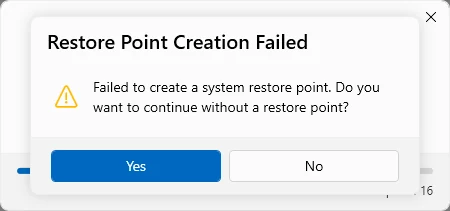
Windows Server has no System Restore, so the restore point fails and Win11Debloat asks what to do. Yes continues without one. No cancels the whole run. Our first Server run dismissed this dialog by mistake, which cancelled it, and nothing was changed. On Windows 11 you would only see it if the restore point itself fails: when System Protection is off, Win11Debloat turns it on for drive C: first. In silent mode (-Silent) the script continues without asking.
"Changes Applied with Errors"
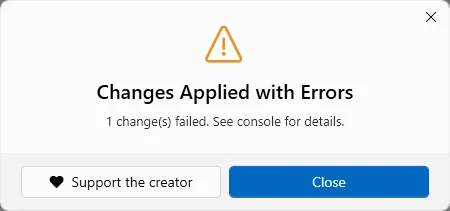
This is the completion dialog when any step failed. On Server, the only failure was the restore point. On Windows 11, the GUI reported 2 change(s) failed. The command-line run on the same image names them in its log: two attempts to remove the Copilot Store app XP9CXNGPPJ97XX, which go through WinGet. Everything else went through.
"WinGet is not installed or outdated"
The Windows 11 image had no up-to-date WinGet. Win11Debloat said so before anything else, WARNING: WinGet is not installed or outdated, this may prevent Win11Debloat from removing certain apps, and waited for a key press. Only the three apps removed through WinGet (Copilot, Edge and OneDrive) are affected. On a normal Windows 11 PC, updating App Installer from the Microsoft Store fixes it.
What it looked like
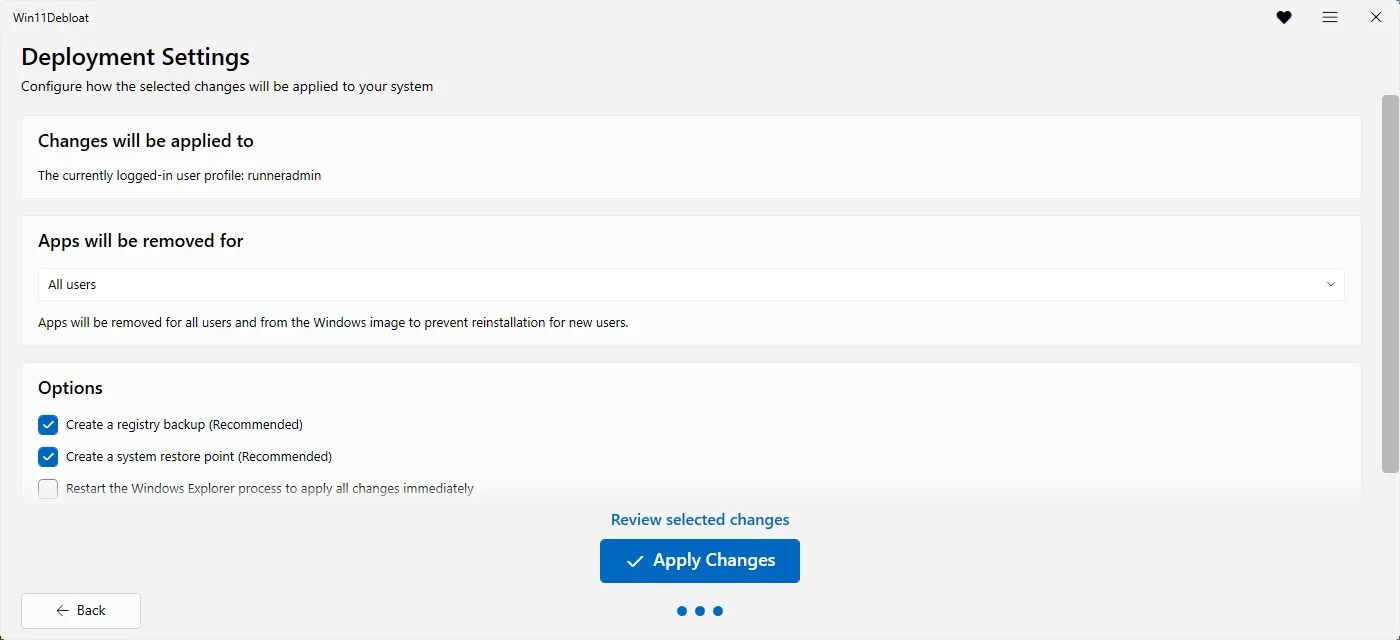
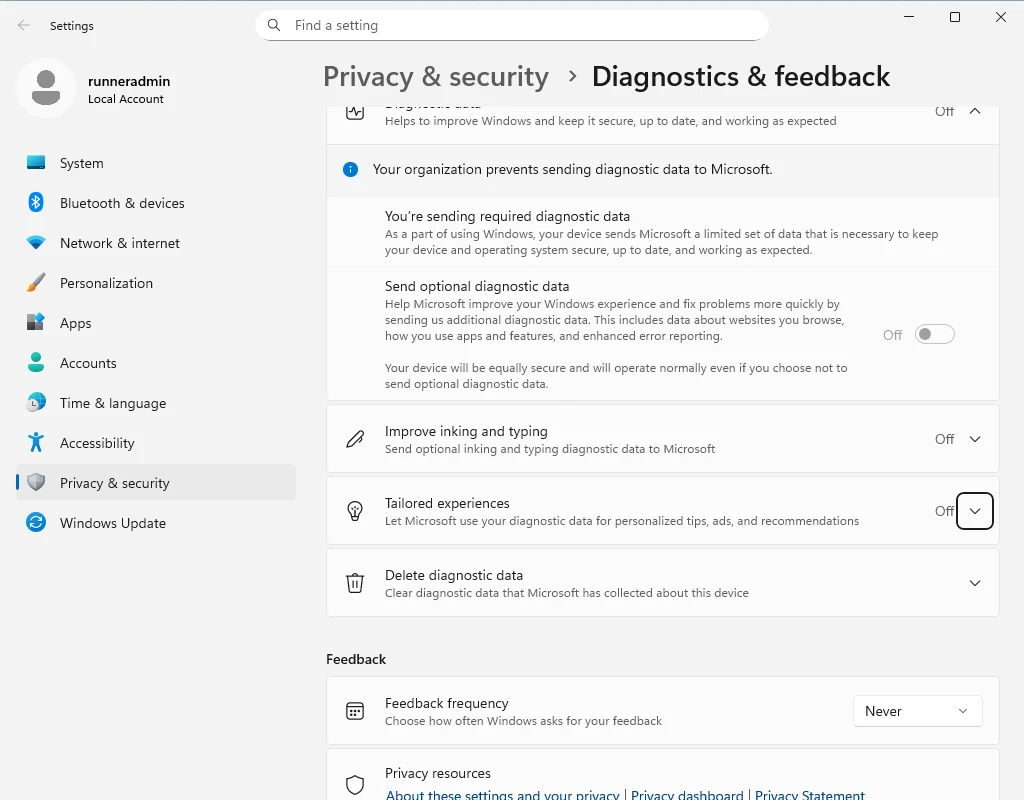
-DisableTelemetry sets, not a real organization.After Default mode, Settings shows Your organization prevents sending diagnostic data to Microsoft. That is not a real organization. It is the Group Policy value that -DisableTelemetry sets. Why the "managed by your organization" message appears.
The files we ran
Every run downloaded the release afresh and hashed it. The hashes were the same on both machines and in every run:
| File | SHA-256 (computed with Get-FileHash on Windows) |
|---|---|
| LauncherGet.ps1 via debloat.raphi.re | 3318C215F8347F4A37282D78E4EFD078284CC3D575D0510EE5E4119F4685378E9,071 bytes. Attached to release 2026.08.24.Identical on all 7 test machines. |
| Main scriptWin11Debloat.ps1 in 2026.08.24 | 1ACE81FC73C227F403D8F20A86D7EB0FA7F34985A017379BF141E04941D2CAADThe file that does the work. Compare this one: it is the same whichever way you download.Identical on all 7 test machines. |
| Release archivezipball of 2026.08.24 | 01CB9B2DF59E5D32BA273198529845BECED6DC447D1C604B139B4EFE69A2AAAD466,563 bytes, 403 files. GitHub builds this archive on the fly, so its hash can change even when the files inside do not.Identical on all 7 test machines. |
What these tests do not cover
- Home and Pro editions. GitHub only offers Enterprise. Home and Pro ship with more third-party apps (games, Spotify, Disney+), so Default mode removes more there.
- Restarts. The machines cannot restart in the middle of a test. A few tweaks only take full effect after signing out or restarting, so we judge them by the registry, not by what Windows showed.
- Long-term use. We did not install Windows updates afterwards to see what comes back.
- Hardware. These are virtual machines with no GPU, battery, printer or Bluetooth. We cannot measure gaming performance or battery life.
- One account, English only. Each machine had a single administrator account and an English (US) Windows.
Community results
Our machines cannot cover Home and Pro editions, real hardware, games or long-term use. Readers can: if you ran Win11Debloat, open its log in the log reader and use Share this result with us. It writes a short summary without your PC name, user name or user folders, and you add your Windows edition and PC model.
We publish a result only after reading the log behind it, and we never publish names, serial numbers or anything that identifies you.
No reader results are published yet. Yours could be the first.
Raw data
All the files below are exactly what the machines produced. Snapshots list every app package, service, scheduled task and tweak-related registry value before and after the run.
| Run | Files |
|---|---|
| Windows 11, run 1 (command line) | run log · facts · diff · before · after · Win11Debloat log · registry backup |
| Windows 11, run 3 (GUI) | run log · facts · diff · before · after · -WhatIf output · LastUsedSettings.json |
| Windows Server, run 2 (GUI) | run log · facts · diff · Win11Debloat log |
| Windows Server, run 3 (GUI) | run log · facts · diff · -WhatIf output · Win11Debloat log |
The test scripts are public too: verify/run.ps1 drives each run and verify/lib.ps1 takes the snapshots. If you run Win11Debloat on your own PC and see something different, tell us at the address at the bottom of this page.
Questions
Does Win11Debloat actually work on Windows 11 25H2?
Yes. On Windows 11 Enterprise 25H2 (build 26200), release 2026.08.24 ran from start to finish both from the command line and through the GUI, and every tweak in Default mode was applied. The only failures were the WinGet-based removals of the Copilot Store app, on a machine without WinGet.
Does it work on Windows on Arm?
Yes. Our Windows 11 test machine is an Arm64 PC. Win11Debloat is a PowerShell script with no compiled parts, so the processor makes no difference.
How long does Win11Debloat take?
Default mode took 108 seconds from the command line and 151 seconds through the GUI on our 2-core test machine. Most of that is app removal, so a PC with more apps installed takes longer.
Can I see what Win11Debloat will do before it does it?
Yes. Add -WhatIf to the command. It prints every app, registry file and scheduled task it would change, and changes nothing. In the GUI, the Review selected changes button lists the selected changes before you apply them.
Does running it twice give different results?
Not in our tests. Two runs on fresh copies of the same Windows 11 image, one from the command line and one through the GUI, made identical changes. On an already-debloated PC, a second run changes nothing new: the apps are gone and the values are already set.
Keep going
Something wrong or out of date? Email hello@win11debloat.dev and we will fix it.