Guide · Windows 11
How to debloat Windows 11
“Debloating” means removing the apps, ads, suggestions and data collection that Windows 11 ships with but you never asked for. You can do a lot of it yourself in Settings, and a script like Win11Debloat does the rest in a couple of minutes. This guide covers both ways, honestly. It is based on what we measured on a fresh Windows 11 25H2 PC, not on promises of a faster computer.
On this page 10 sections
Short answer
How do I debloat Windows 11?
- Open PowerShell or Terminal: right-click Start and choose Terminal.
- Run Win11Debloat: paste
& ([scriptblock]::Create((irm "https://debloat.raphi.re/")))and press Enter. - Choose Default Mode, review the list and click Apply Changes. It makes a restore point first, and takes about two minutes.
Prefer not to run a script? The manual way covers most of it in Settings.
What counts as bloat on Windows 11
Windows 11 does not come with much classic “bloatware” that slows the PC down. What it has is clutter that gets in the way, and features that send data or show you ads. On our fresh test PC it fell into five groups:
| Kind | Examples | Where it comes from |
|---|---|---|
| Preinstalled apps | Clipchamp, News, Weather, Solitaire, Teams, To Do, Feedback Hub, Dev Home | Microsoft, plus games and trials on Home and Pro (Candy Crush, Spotify and others), and OEM apps on brand-name PCs |
| Ads and suggestions | Recommended apps in Start, tips on the lock screen, suggestions in Settings, Edge's news feed | Windows' “suggested content” settings |
| AI features | Copilot, Recall and Click to Do (on Copilot+ PCs), AI in Paint, Notepad and Edge | Built in, and growing with each update |
| Data collection | Optional diagnostic data, the advertising ID, tailored experiences, activity history | Privacy settings and scheduled tasks |
| Taskbar and Start clutter | Widgets, Bing results in search, Task view, the Copilot button | Default taskbar and search settings |
Source: Our test run, October 2026
Show the data
| Item | Value |
|---|---|
| System parts, frameworks, codecs | 73 |
| Rated safe to remove | 13 |
| Optional: you may use these | 15 |
| Not recommended to remove | 6 |
Most of what is installed is Windows itself: the Store, frameworks, codecs and system components. Only about a third of the packages were apps that could reasonably go. Use the app checker to see the same breakdown for your own PC.
Should you debloat Windows 11?
For most people it is worth doing once, mostly for a cleaner Start menu and fewer ads and prompts. Be realistic about what you get:
What you get
- A Start menu and taskbar without promoted apps, Bing results or Widgets.
- Far fewer tips, suggestions and ads across Windows.
- Copilot, Recall and other AI features switched off.
- Less optional data sent to Microsoft.
- Some disk space back: 803 MB on our test PC.
What you do not get
- A noticeably faster PC. We could not measure a memory or speed gain, and neither can most people who try.
- More frames in games. Removed apps were not running anyway.
- A permanent change. Big Windows updates can bring some apps and settings back.
- A risk-free change if you remove everything: some apps are needed by other features.
Debloat Windows 11 with Win11Debloat
Win11Debloat is a free, open-source PowerShell script by Raphire with 61.3k stars on GitHub. It is the quickest way to do all of the above, and it is reversible. Is it safe?
Start it
Right-click Start, open Terminal, paste the command below and press Enter. Accept the administrator prompt.
PowerShell& ([scriptblock]::Create((irm "https://debloat.raphi.re/")))Pick Default Mode, or Custom Setup
Default Mode applies a careful selection: 84 rarely used apps and 16 tweaks. Custom Setup lets you choose every app and tweak yourself. What Default mode changes.
Review and apply
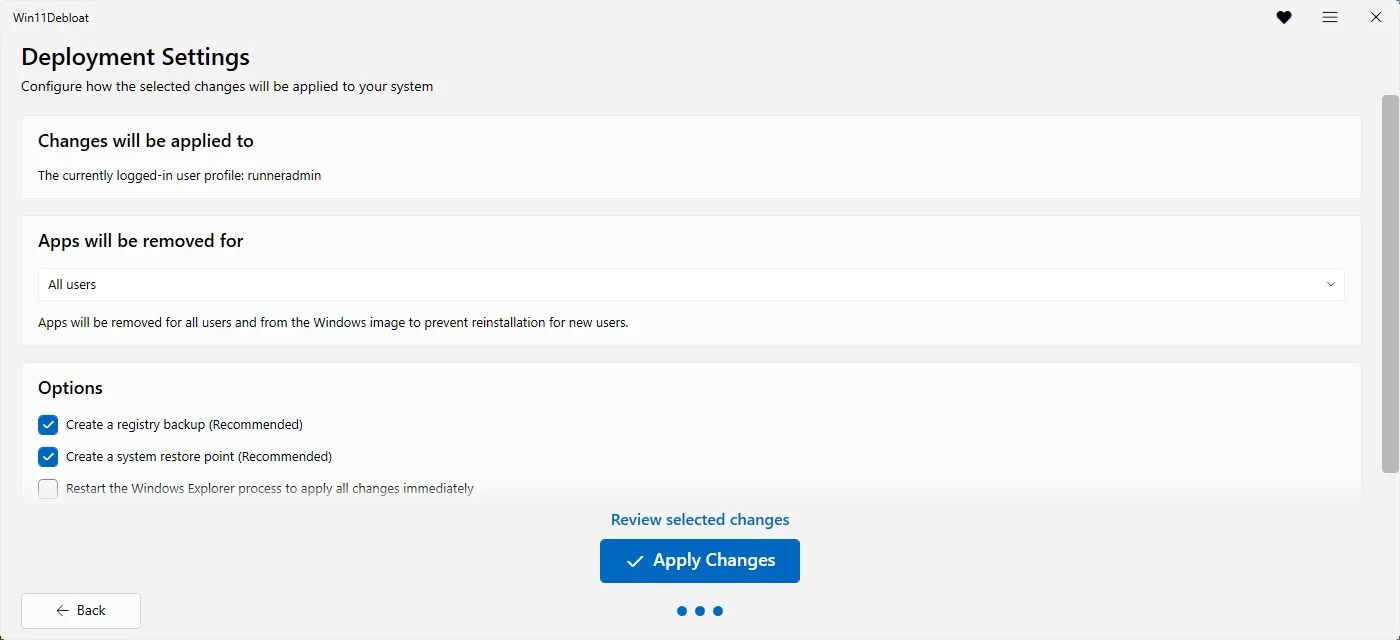
Keep registry backup and restore point ticked, tick Restart the Windows Explorer process if you want to see the changes at once, click Review selected changes, then Apply Changes. On our test PC it took 108 to 151 seconds.
Restart
The wizard does not restart Explorer unless you tick Restart the Windows Explorer process on the last page, so taskbar and Start changes may only show after you sign out. Policies and some settings need a restart anyway, so restarting once is simplest.
Want it without clicking? -RunDefaults -Silent after the command does the same with no questions. The command builder makes custom commands.
Debloat Windows 11 manually, without tools
Everything below is in Settings, so it is safe and easy to reverse. Menu names can differ slightly between Windows versions. What Settings cannot do is turn off Bing in search, Copilot completely or the telemetry tasks. Those need registry or Group Policy changes, which is what scripts like Win11Debloat automate.
Uninstall apps you do not use
Settings → Apps → Installed apps. Click ⋯ next to an app and choose Uninstall. Check our app list for anything you are unsure about.
Turn off ads and suggestions
Settings → Privacy & security → General: turn off personalized ads and suggested content. Then Settings → System → Notifications → Additional settings: untick the tips and suggestions.
Clean up Start
Settings → Personalization → Start: turn off recommendations for tips, shortcuts and new apps. Right-click pinned apps you do not want and choose Unpin from Start.
Clean up the taskbar
Settings → Personalization → Taskbar: turn off Widgets and Task view, and set Search to an icon or hide it.
Clean up the lock screen
Settings → Personalization → Lock screen: switch from Windows spotlight to a picture, and turn off fun facts and tips.
Reduce data collection
Settings → Privacy & security → Diagnostics & feedback: turn off optional diagnostic data and tailored experiences. Under Search permissions, turn off search history and search highlights.
That takes about fifteen minutes and gets you perhaps two-thirds of the way. Win11Debloat's 95 tweaks cover the rest, each with its exact registry values on our tweaks list.
What not to remove
Some apps look like bloat but other parts of Windows depend on them. Win11Debloat marks seven as “not recommended” and never selects them by default:
- Microsoft Store. Without it, you cannot reinstall the other apps, and it is hard to get back.
- Xbox Identity Provider, Xbox TCUI and Xbox Speech To Text. Needed for signing in to some games and Xbox services.
- Get Help. Some built-in troubleshooters need it.
- Windows Terminal and Microsoft Edge. Other apps open Edge for web content, and Windows Sandbox uses it as its browser.
Think twice about Photos, Snipping Tool, Phone Link and your PC maker's support app too. They are useful to many people. Every app is rated in the app list.
What about disabling services?
Many debloat guides tell you to disable dozens of Windows services. Win11Debloat deliberately does not. In Default mode it changes exactly one service: the Windows AI service WSAIFabricSvc, from Automatic to Manual. It also disables 8 telemetry scheduled tasks. Disabling services by hand saves very little memory and is a common cause of broken updates, printing and Bluetooth. We do not recommend it.
Does debloating make Windows 11 faster?
Not in a way we could measure. On our test PC, Default mode freed 803 MB of disk space, but memory use and the number of running processes did not go down before the restart we could not do. That fits how Windows works: most preinstalled apps do not run until you open them. The real gains are fewer interruptions, a cleaner Start menu and less background data collection. All our measurements.
Debloating a fresh install
The best time to debloat is right after setting up Windows, before you sign in to your apps. Run Win11Debloat as the first thing you do. To prepare a PC for several people, or before you create user accounts, use -Sysprep: it changes the default profile that new accounts are created from.
& ([scriptblock]::Create((irm "https://debloat.raphi.re/"))) -Sysprep -RunDefaults -SilentWin11Debloat does not build a custom Windows ISO. If that is what you want, tools like tiny11 build one, at the cost of a modified, unofficial Windows image.
Keeping it debloated
Monthly updates keep your settings. Major feature updates, which install a new Windows version, can reinstall some apps and reset some settings. Afterwards, run Win11Debloat again with your last choices:
& ([scriptblock]::Create((irm "https://debloat.raphi.re/"))) -RunSavedSettingsQuestions
Is it safe to debloat Windows 11?
Yes, if you stay away from the few apps other features need, listed above. Removing apps and switching off suggestions does not harm Windows. Win11Debloat's Default mode only selects safe items, and it makes a restore point and registry backup first.
Can I debloat Windows 11 Home?
Yes. Win11Debloat works on Home, Pro and Enterprise. Home has no Group Policy editor, but Win11Debloat writes the policy values straight to the registry, so its tweaks still apply. One limit comes from Windows itself: -DisableTelemetry sets diagnostic data to the lowest level, Security, which Microsoft only honours on Enterprise and Education. Home and Pro treat it as Required, the lowest level they allow.
Will debloating break Windows updates?
Not with Win11Debloat's tweaks: none of them touch Windows Update unless you pick one of the four optional Windows Update tweaks, which only change update timing, automatic restarts, sharing with other PCs and companion apps. Breaking updates usually comes from disabling services, which Win11Debloat does not do: its only service change stops the Windows AI service from starting by itself.
What is the best Windows 11 debloater?
The best-known options are Win11Debloat, Chris Titus Tech's WinUtil and O&O ShutUp10++. Win11Debloat is the simplest of them, with a one-click Default mode and a wizard, and every change is a readable registry file you can check. WinUtil does more, including installing software and changing services, but lists fewer apps to remove. ShutUp10++ changes privacy settings only, and it is not open source. We compared them, and tiny11, Talon and privacy.sexy, from their source code: see alternatives.
How long does it take to debloat Windows 11?
About two minutes with Win11Debloat's Default mode on our test PC, plus a restart. Doing the same by hand in Settings takes about fifteen minutes and covers less.
Keep going
Something wrong or out of date? Email hello@win11debloat.dev and we will fix it.