Help · Policies
“Some of these settings are managed by your organization”
After running Win11Debloat, Settings may show this message and grey out some switches, even on your own PC. Nothing is wrong, and nobody else controls your computer. It appears because some of Win11Debloat's tweaks use Group Policy, the same mechanism companies use. Here is which tweaks do it, how to check, and how to make it go away.
On this page 6 sections
Short answer
Why does Windows say my settings are managed by my organization after Win11Debloat?
- Cause: 27 of Win11Debloat's tweaks switch features off with Group Policy values. Windows shows this message whenever any policy is set. Default mode includes 8 of them, among them telemetry, Copilot and Recall.
- Is it a problem? No. It is cosmetic. Your PC is not enrolled in anything.
- To remove it: undo the policy tweaks. In Win11Debloat, untick them on System Tweaks (with Detect applied tweaks on) and apply.
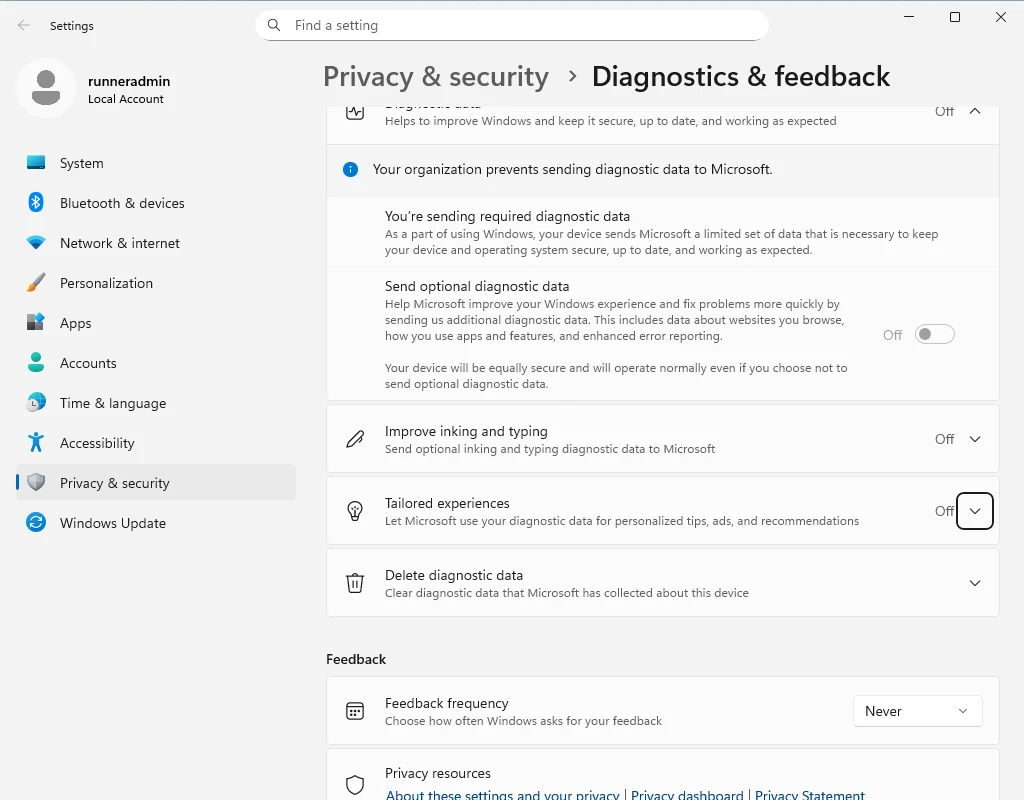
-DisableTelemetry sets, not a real organization.Why Win11Debloat uses policies
Many Windows features have two switches: the one in Settings, and a Group Policy that companies use to lock a setting for all their PCs. A policy always wins. If you turn off telemetry or Copilot only in Settings, Windows or an update can turn it back on. If a policy turns it off, it stays off. Settings then shows the switch greyed out, with a message that explains why.
That is why Win11Debloat writes policy values for features it wants to switch off reliably. The project's own descriptions of these tweaks say so: “This feature uses policies, which will lock down certain settings.” On Windows 11 Home, which has no Group Policy editor, the values are written straight to the registry, with the same effect.
Where you will see it
On our Windows 11 25H2 test PC, after Default mode, Settings → Privacy & security → Diagnostics & feedback showed both of these messages:
- Some of these settings are managed by your organization.
- Your organization prevents sending diagnostic data to Microsoft.
Depending on what you applied, you may also see it:
- In Microsoft Edge as Your browser is managed by your organization, from
-DisableEdgeAds,-DisableEdgeAIor-DisableTelemetry, which set Edge policies.edge://policylists them. - In Brave, from
-DisableBraveBloat.brave://policylists them. - In Windows Update settings, from
-PreventUpdateAutoReboot. - On Start, location and spotlight settings, from the matching tweaks in the table below.
Which tweaks set policies
All 27 of them, Default mode first. Each links to the tweak's full registry values and undo file.
| Tweak | Default | Policy key it writes |
|---|---|---|
Disable ads, suggestions and newsfeed in Edge-DisableEdgeAds | ● | HKLM\…\Policies\Microsoft\Edge |
Disable Bing web search & Copilot integration in search-DisableBing | ● | HKCU\…\Policies\Microsoft\Windows\ExplorerHKLM\…\Policies\Microsoft\Windows\Windows Search |
Disable Click To Do, AI text & image analysis-DisableClickToDo | ● | HKCU\…\Policies\Microsoft\Windows\WindowsAIHKLM\…\Policies\Microsoft\Windows\WindowsAI |
Disable Microsoft Copilot-DisableCopilot | ● | HKCU\…\Policies\Microsoft\Windows\WindowsCopilotHKLM\…\Policies\Microsoft\Windows\WindowsCopilot |
Disable Modern Standby network connectivity-DisableModernStandbyNetworking | ● | HKLM\…\Policies\Microsoft\Power\PowerSettings\f15576e8-98b7-4186-b944-eafa664402d9 |
Disable telemetry, tracking & targeted ads-DisableTelemetry | ● | HKLM\…\CurrentVersion\Policies\DataCollectionHKLM\…\Policies\Microsoft\Windows\SystemHKLM\…\Policies\Microsoft\Edge |
Disable Windows Recall-DisableRecall | ● | HKCU\…\Policies\Microsoft\Windows\WindowsAIHKLM\…\Policies\Microsoft\Windows\WindowsAI |
Hide Chat (meet now) icon on the taskbar-HideChat | ● | HKCU\…\CurrentVersion\Policies\Explorer |
Disable AI features in Microsoft Edge-DisableEdgeAI | HKLM\…\Policies\Microsoft\Edge | |
Disable AI features in Notepad-DisableNotepadAI | HKLM\…\Policies\WindowsNotepad | |
Disable AI features in Paint-DisablePaintAI | HKLM\…\CurrentVersion\Policies\Paint | |
Disable bloat in Brave browser (AI, Crypto, etc.)-DisableBraveBloat | HKLM\…\Policies\BraveSoftware\Brave | |
Disable Find My Device location tracking-DisableFindMyDevice | HKLM\…\Policies\Microsoft\FindMyDevice | |
Disable Windows location services & app location access-DisableLocationServices | HKLM\…\Policies\Microsoft\Windows\LocationAndSensors | |
Disable Windows spotlight desktop background-DisableDesktopSpotlight | HKCU\…\Policies\Microsoft\Windows\CloudContent | |
Disable Xbox game/screen recording-DisableDVR | HKLM\…\Policies\Microsoft\Windows\GameDVR | |
Enable Windows spotlight desktop background and shortcut-EnableDesktopSpotlight | HKCU\…\Policies\Microsoft\Windows\CloudContent | |
Hide 'All Apps' section in the start menu-DisableStartAllApps | HKCU\…\CurrentVersion\Policies\Explorer | |
Hide Microsoft 365 Copilot ads in Settings Home-DisableSettings365Ads | HKLM\…\Policies\Microsoft\Windows\CloudContent | |
Hide recommended section in the start menu-DisableStartRecommended | HKCU\…\Policies\Microsoft\Windows\Explorer | |
Hide Settings 'Home' page-DisableSettingsHome | HKLM\…\CurrentVersion\Policies\Explorer | |
Hide the 'Learn about this picture' desktop shortcut-HideDesktopSpotlightIcon | HKCU\…\Policies\Microsoft\Windows\CloudContent | |
Prevent automatic restarts after updates while signed in-PreventUpdateAutoReboot | HKLM\…\Policies\Microsoft\Windows\WindowsUpdate\AU | |
Prevent Windows from auto-installing device companion apps-DisableDeviceAutoAppDownload | HKLM\…\Policies\Microsoft\Windows\Device Metadata | |
Show All Apps in Category view (Default)-StartAllAppsCategory | HKCU\…\CurrentVersion\Policies\Explorer | |
Show All Apps in Grid view-StartAllAppsGrid | HKCU\…\CurrentVersion\Policies\Explorer | |
Show All Apps in List view-StartAllAppsList | HKCU\…\CurrentVersion\Policies\Explorer |
Read from the .reg files of Win11Debloat 2026.08.24. A tweak counts as a policy tweak when it writes under a Policies key. … stands for SOFTWARE.
How to check which policies are set
To see every policy value on your PC, run these in PowerShell. They only read, and change nothing:
reg query "HKLM\SOFTWARE\Policies" /s
reg query "HKCU\Software\Policies" /s
reg query "HKLM\SOFTWARE\Microsoft\Windows\CurrentVersion\Policies" /s
Compare what you find with the table above. Anything that is not from Win11Debloat may come from other software, a previous tweak tool, or a real organization if the PC was ever a work device.
How to make the message go away
Decide which tweaks you can live without
The message goes away when no policy affects that Settings page. On the diagnostics page that means undoing
-DisableTelemetry, which also turns diagnostic data collection back on. It is a trade-off: the message is the visible sign that the tweak is working.Undo them in Win11Debloat
Run Win11Debloat, choose Custom Setup, go to System Tweaks with Detect applied tweaks on, untick the policy tweaks and apply. This deletes exactly the policy values those tweaks wrote. Step by step.
Reopen Settings
Close and reopen Settings. If the message is still there, sign out and back in, or restart.
Questions
Does “managed by your organization” mean my PC was hacked?
No. After Win11Debloat it only means that policy values are set, and Win11Debloat set them. If you never ran a debloat tool and see this on a personal PC, check the policy list with the commands above.
Can I keep telemetry off without the message?
Not fully. The Settings switch for optional diagnostic data turns it off without a policy and without the message, but it is less strict and can be changed back by Windows. The policy is what makes it stick, and the message comes with it.
Will the message go away by itself?
No. It stays as long as the policy values are set. Windows updates do not usually remove them.
Does Default mode cause this?
Yes. Default mode applies 8 policy tweaks: telemetry, Edge ads, Copilot, Recall, Click to Do, Bing in search, Modern Standby networking, and the old Chat icon, which only applies up to Windows 11 22H2. On our Windows 11 25H2 test PC, the diagnostics page showed the message after Default mode.
Keep going
Something wrong or out of date? Email hello@win11debloat.dev and we will fix it.